The Day My Website Locked Everyone Out
"Your Connection is Not Private" is one of the scariest screens a visitor can see on your site, and it usually has nothing to do with hacking. Most of the time, it's a quick handshake between browser and server that failed, often over something as small as an expired certificate or a mismatched clock. Once you know where to look, fixing it takes minutes, not a panic-filled afternoon.
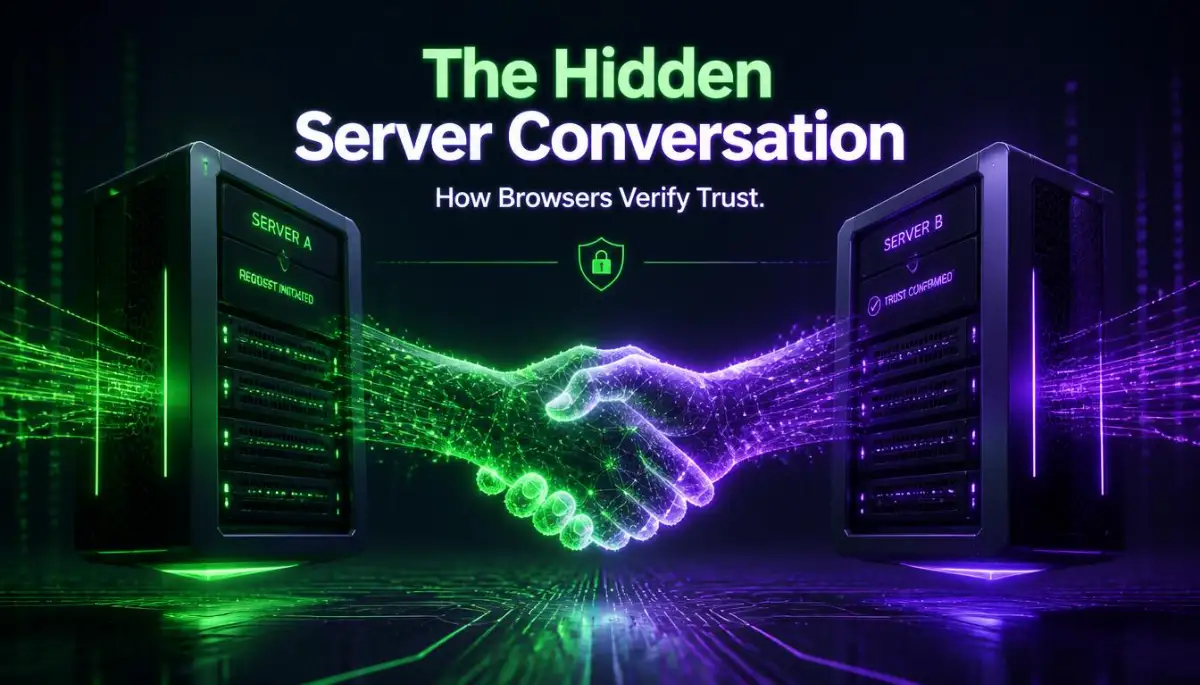
Why Your Padlock Disappeared
- An SSL handshake is a split-second identity check between browser and server, not proof of a hack.
- Most failures trace back to one of three things: an expired certificate, a mismatched clock, or a stubborn browser cache.
- One unsecured image or script on an otherwise secure page can trigger a "partially secure" warning.
- Free certificates work exactly the same as paid ones, the error is almost always a configuration issue, not a payment issue.
Understanding the Hidden Digital Handshake
To fix this incredibly annoying problem, we first need to understand what an SSL handshake actually is. Imagine you are trying to enter a highly secure, exclusive VIP club.
You cannot just walk right through the front door. You have to stop and present your physical ID card to a very strict security guard.
The guard looks at your ID, checks the expiration date, and verifies that the signature matches their official records. If everything looks absolutely perfect, the guard shakes your hand and opens the heavy door.
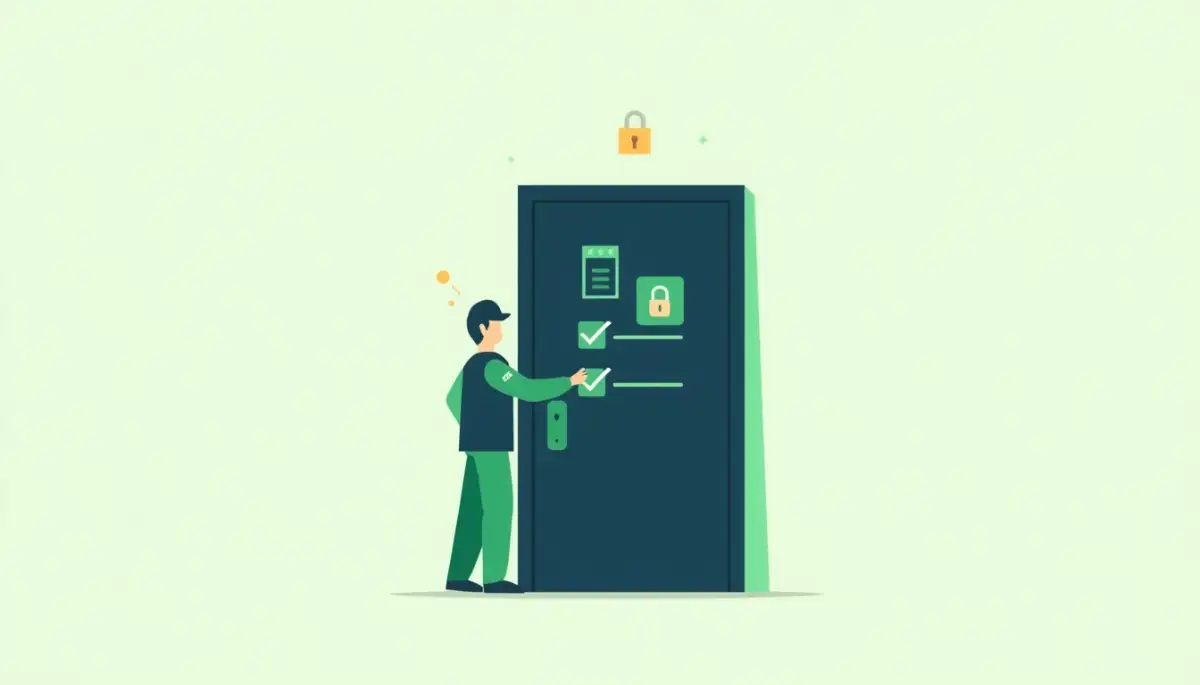
This exact same process happens digitally every single time someone types your web address into their browser. Before any text or images load on the screen, the visitor's browser acts like that strict security guard.
It knocks on your web server's door and asks to see its official identification, which is your SSL certificate. The server hands over the certificate, and the browser inspects the encrypted mathematical signatures.
If the browser cannot verify who issued the certificate, or if the math does not align perfectly, the digital handshake completely fails. The browser immediately drops a heavy red warning screen to protect the human user sitting at the keyboard.
Interactive Markdown Table: The Handshake Reality Check
It is very easy to misunderstand how digital certificates operate. Let us clear up the most common confusing theories about website security.
Step-by-Step Diagnostics for a Broken Connection
When a handshake fails, the browser refuses to establish a secure connection protocol. You are left with a broken website and zero traffic.
We need to systematically check the entire chain of trust to find the broken link. Here are the most practical, actionable steps to diagnose and solve the problem right now.
Step 1: Checking the Most Obvious Culprit
Human beings have a terrible habit of overcomplicating technology. When a website goes down, we immediately assume the core server logic has melted.
In reality, more than half of all handshake failures happen simply because the SSL certificate has naturally expired. Digital security certificates are not permanent; they have strict expiration dates just like a carton of milk.
Many modern hosting providers use free automated systems like Let's Encrypt, which only issue certificates valid for ninety days. Usually, a background script on your server automatically renews this certificate before it expires.
However, if your server experiences a temporary glitch, that automatic renewal script might fail silently in the background. The clock runs out, your certificate expires, and the browser instantly flags your website as a massive security risk.
You must log directly into your web hosting control panel and locate the "SSL/TLS Status" menu. Check the exact expiration date printed next to your domain name.
If the date has passed, simply click the button to manually run the AutoSSL renewal process. Within five minutes, your green padlock should magically reappear.
Step 2: Fixing Misaligned System Clocks
This next diagnostic step sounds almost too simple to be true, but it causes massive headaches globally. The entire mathematical foundation of public key encryption relies heavily on exact, synchronized time.
If a visitor tries to access your website, their local computer clock must roughly match the current global time. If a visitor's laptop battery dies and their internal clock resets to five years ago, the secure connection will completely fail.
The browser will look at your perfectly valid, modern certificate and mistakenly think it was issued in the future. Because the dates do not make logical sense to the computer, the browser aborts the handshake to be safe.
This trips up more people than you'd think. A reader once told me her entire office network showed the SSL error on a Monday morning, only for someone to realize the office router had reset its clock to 1970 after a power outage over the weekend. One clock fix, and every computer in the building loaded the site normally again.
If you are the only person seeing the error while your friends can view your site perfectly, check your computer's bottom taskbar. Ensure your machine is set to automatically synchronize the time and date with an official internet time server.
I actually spent three hours arguing with my hosting provider about a broken SSL certificate on my testing site. I was completely convinced their servers were broken, but it turned out the internal clock on my old backup laptop was running exactly two days behind. Fixing my local time zone instantly solved the terrifying red warning screen, teaching me to always check the simplest solutions first.
Before we look at the deeper network issues, watch this incredibly helpful visual breakdown of how browsers actually read security certificates.
Step 3: Clearing the Stubborn Browser State
Your web browser is designed to be incredibly fast and efficient. To save time, it often remembers the security status of websites you visit frequently.
This memory bank is called the SSL state cache. If your website temporarily had a broken certificate yesterday, the browser might store that "broken" memory locally.
Even after you fix the certificate on your web server today, your personal browser might stubbornly remember the error from yesterday. It refuses to load the new, secure version because it is stuck looking at the old, cached warning.
You need to manually force your computer to forget this outdated security information. If you use Windows, you can open your internet properties and easily click the "Clear SSL State" button.
If you are using a Mac, simply clearing your browser history and completely restarting your device usually flushes out the bad memory. Ask a friend to check your website on their phone using a cellular data network.
If the site loads perfectly for them, you absolutely know the problem is just a stubborn cache on your own local machine.
Step 4: Translating the Cipher Suite Mismatch
Now we need to look slightly deeper into the technical mechanics of the server conversation. When the browser and the server meet at the digital door, they have to agree on a shared language.
In the cybersecurity world, these languages are called "cipher suites." A cipher suite is basically a specific set of mathematical rules used to scramble and unscramble the data.
If your web server only speaks a highly advanced, modern security language, but the visitor is using a very old, outdated web browser, they cannot communicate. Because they cannot agree on how to safely scramble the data, the server simply hangs up the phone.
This usually happens when a website owner configures their server to completely block older protocols like TLS 1.0 or TLS 1.1 for safety reasons. If an older customer tries to visit using an ancient version of Internet Explorer, the handshake fails immediately.
You need to ask your web hosting support team to ensure your server supports a healthy balance of modern and slightly older cipher suites. This ensures that almost everyone can safely connect without lowering your overall security walls too much.
Pro Tip: Before changing any cipher suite settings, check your site's actual visitor browser data in your analytics dashboard first. If 99% of your traffic already comes from modern browsers, you can safely drop old protocol support without losing real visitors.
Step 5: The Silent Trap of Mixed Content
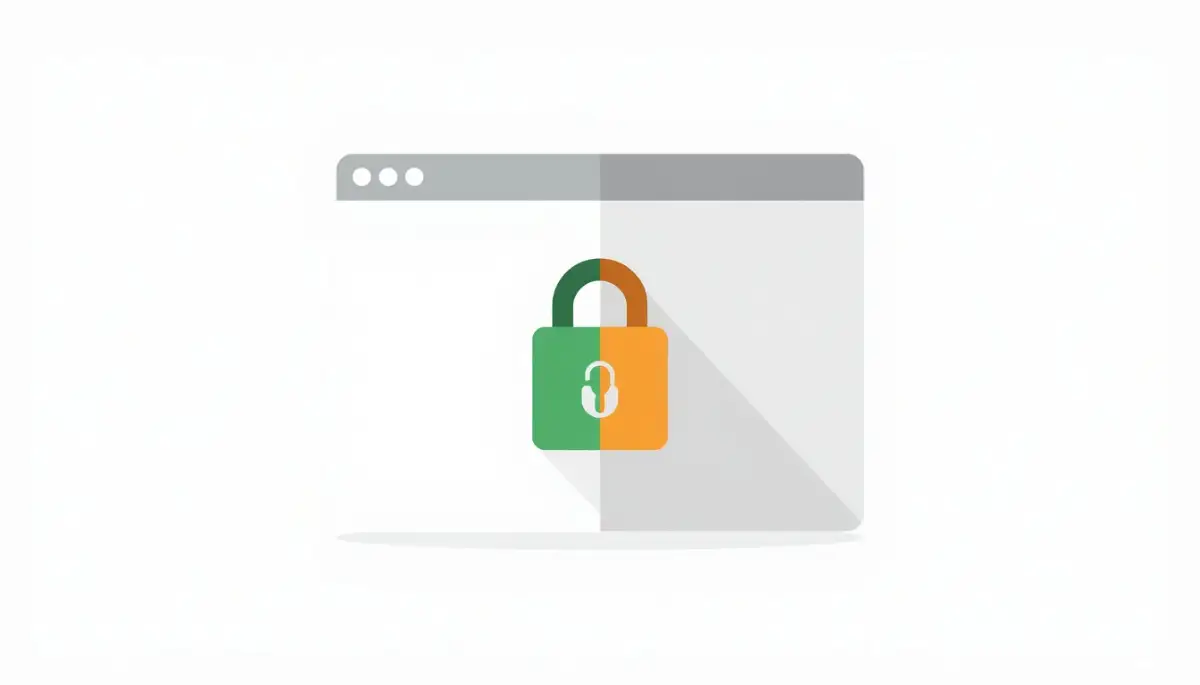
Sometimes, the digital handshake succeeds perfectly, but the browser still throws a highly annoying security warning. You might see a strange yellow triangle over your padlock or a message saying the connection is "Only partially secure."
This confusing scenario is known as a mixed content error. It happens when your main web page loads securely over HTTPS, but a tiny element on the page loads over an old, unsecure HTTP link.
It only takes one single unsecured image, a rogue background script, or an old tracking pixel to break the trust of the entire page. The browser gets confused because half the page is locked in a vault, while the other half is sitting out in the open.
To find the sneaky culprit, you can right-click anywhere on your website and select "Inspect" to open the developer tools. Look closely at the "Console" tab, which will highlight any unsecure image links in bright yellow or red text.
Once you find the old HTTP link, simply edit your post and change the link to include the secure "HTTPS" prefix. This tiny adjustment instantly removes the mixed content warning and fully restores your beautiful green padlock.
Pro-Level Habits to Keep Your Website Locked Down
Fixing a broken handshake is a great relief, but true professionals do not just wait for the red screen to appear. You need to establish a few automated habits that actively monitor your security status while you sleep.
By setting up these simple backend alarms, you will never have to deal with a sudden drop in traffic again. Let's look at the exact strategies that top-tier web administrators use to keep their green padlocks shining perfectly every single day.
These advanced habits are surprisingly easy to configure, and they completely remove the heavy anxiety of unexpected server errors.
Deploying Automated Certificate Monitors
You absolutely cannot rely on your memory to manually renew a ninety-day digital certificate. Even the most organized business owners eventually forget a calendar date when things get busy.
Instead, you should connect your domain to a free, third-party uptime monitoring service. Tools like Uptime Robot or basic server monitors will constantly ping your website every five minutes to check its health.
More importantly, these tools can be configured to specifically check your exact SSL expiration date. According to the infrastructure experts at the Internet Engineering Task Force (IETF), automated certificate monitoring is the single most effective way to prevent sudden digital identity failures. They will send you an urgent text message or email exactly seven days before your certificate naturally expires, giving you plenty of time to fix it before your visitors ever see a warning.
Enforcing Strict HTTPS Connections
Once you secure your beautiful green padlock, you must ensure that every single visitor is forced to use it. When someone types your basic web address into their browser, they often forget to type the "https://" part.
If your server is not configured correctly, it might actually load the old, unsecure version of your site. This completely defeats the entire purpose of having a security certificate in the first place.
You need to log into your hosting dashboard and activate a rule called "Force HTTPS." If you are confused by weird server behavior, understanding what your server is trying to tell you during a 502 error can help you realize how traffic routing actually works. This forcing rule instantly grabs any visitor trying to use an old link and permanently redirects them through your highly secure, encrypted digital doorway.
Auditing Third-Party External Scripts
We previously talked about the annoying mixed content error, where one tiny unsecure image breaks the trust of your entire page. However, images are not the only things that can ruin your perfect security score.
Many website owners use external widgets, like a live weather feed, a custom font library, or an old advertising banner. If the third-party company hosting that widget fails to update their own SSL certificate, your website gets penalized for their mistake.
You must routinely check the external plugins you install on your site. If a specific advertising network or widget constantly throws security warnings, you must permanently delete it from your code. No external feature is ever worth sacrificing the absolute trust of your daily visitors.

The Dangerous Mistakes That Keep Your Site Offline
Even when website owners finally figure out why the handshake failed, they often make terrible, emotional decisions while trying to fix it. When your traffic is plummeting, the sheer panic makes you click buttons without thinking clearly.
Let's break down the most severe, real-world mistakes people make when trying to restore their security certificates. Avoiding these specific pitfalls will ensure you do not accidentally break your entire website permanently.
The Self-Signed Certificate Trap
When people discover their free automated certificate has broken, they often look for quick, manual shortcuts in their dashboard. They usually find an option called "Generate a Self-Signed Certificate" and excitedly click it.
This is the fastest, most guaranteed way to permanently scare away every single person who visits your site. A self-signed certificate means you mathematically verified your own identity, without using a globally trusted third-party authority.
Browsers absolutely hate this practice and will throw an even bigger, scarier warning screen than before. Never use a self-signed certificate for a public-facing website; they are strictly designed for private, internal testing servers only.
Canceling Active Domain Privacy Tools
Sometimes a handshake fails simply because the certificate authority cannot verify that you actually own the domain name. This usually happens when a website owner heavily locks down their domain registration with aggressive privacy guard tools.
While keeping your personal home address off public domain registries is incredibly smart, it can block automated verification emails. Do not permanently cancel your domain privacy just to pass a simple security check.
Instead, temporarily pause the privacy shield for ten minutes, let the automated SSL script verify your ownership, and then instantly turn the privacy shield back on. If you ever change hosting providers, reading about why waiting 48 hours for dns propagation is mostly a myth will show you how quickly these domain verification records actually travel across the global internet.
Ignoring Backend File Clutter
Many people assume that security errors are entirely separate from basic server storage problems. They spend hours fighting with encryption settings, not realizing their server is simply choking on digital trash.
If your hosting account hits its absolute maximum file limit, your server physically cannot generate the tiny text files needed to complete an SSL handshake. If you have thousands of unread spam emails or unused image thumbnails, your server will completely freeze.
You absolutely need to understand why your website keeps crashing even with unlimited hosting space to see how invisible file limits destroy basic security protocols. Always ensure your server has at least twenty percent empty space so it can comfortably process these rapid digital handshakes.
Blindly Trusting Old Software Versions
Your website's core software is constantly being improved by global developers to handle newer, much stronger encryption languages. If you constantly ignore the little update notifications on your dashboard, you are forcing your server to use outdated, weak communication protocols.
Older software versions are notorious for failing to properly complete modern TLS handshakes. You really need to understand the 5 hidden dangers of clicking remind me later on system updates to grasp how much structural damage outdated code causes behind the scenes.
Keeping your core system, your active theme, and your security plugins fully updated ensures your server can easily speak the newest encryption languages perfectly.
Common Questions About Security Handshakes
How long does an SSL handshake actually take to complete?
A healthy digital handshake usually happens in less than a few hundred milliseconds, completely invisible to the human eye. If your website takes more than three seconds to load a blank white screen, the handshake process is definitely timing out.
Will fixing my SSL certificate improve my Google search ranking?
Yes, absolutely. Google officially stated years ago that having a valid, secure HTTPS connection is a direct ranking signal. If your site throws a broken padlock error, search engines will aggressively push your pages down the ranking list.
Can a public Wi-Fi network cause a handshake to fail on my laptop?
Yes, it happens very frequently. Many free airport or hotel Wi-Fi networks require you to click an "Agree" button on a splash page before granting full internet access. Until you click that specific button, the local router will aggressively block your secure handshakes.
Do I need to buy an expensive Premium EV certificate for a simple blog?
No, you do not. A free certificate from Let's Encrypt provides the exact same mathematical level of deep encryption as a highly expensive corporate certificate. The only difference is the amount of manual legal paperwork required to verify a massive corporate business.
Your Final Action Plan for Perfect Security
You now have a deep, highly practical understanding of the invisible security conversations that happen on your web server every single second. The terrifying, confusing red warning screen no longer holds any scary power over you or your online business.
You do not have to live in constant, heavy fear of waking up to a completely locked-out website and a massive drop in your daily traffic. Your website is an incredibly valuable digital asset, and you now know exactly how to keep the security doors wide open for your loyal readers.
By aggressively checking your expiration dates, fixing your local computer clock, and purging old browser caches, you give your server the necessary tools to verify its identity perfectly.
I actually remember the massive wave of emotional relief I felt when I finally tracked down that one tiny HTTP image link and watched my mixed content warning instantly disappear into a beautiful green padlock. It truly felt like my entire online business had finally regained its lost reputation. Take total control of your hosting dashboard today, force those secure connections, and enjoy the lasting peace of mind of a perfectly trusted website!
Disclaimer: The information provided in this article is for educational and informational web infrastructure purposes only. It should not be considered professional IT or direct server administration advice. Hosting environments and encryption protocols vary greatly, and you should always create a secure, off-site backup of your entire website before changing core server settings.