

The Day My Best-Performing Website Simply Disappeared
"Unlimited storage" sounds great until your site crashes with plenty of space still free. That's exactly what happened to me, a "Resource Limit Reached" error on a server that was only half full. The real culprit wasn't storage at all. It was something almost no hosting company explains clearly: your inode limit.

You just see a blank page, and every minute it stays like that, you are losing loyal readers, brand reputation, and valuable ad revenue. This invisible file barrier is a daily nightmare for thousands of small business owners. They pay good money for "unlimited" hosting plans, only to quickly realize that "unlimited" is just a clever marketing trick.
The internet is full of confusing technical jargon that makes you feel like you need a computer science degree just to run a simple blog. But you do not have to live in constant fear of random server crashes. Let us walk through exactly what this invisible wall is, so you can protect your hard work and get your peace of mind back today.
What's Actually Crashing Your Site
- "Unlimited" hosting plans almost always cap your total file count, even when storage space is untouched.
- One inode equals one file, so a single image can secretly multiply into ten hidden thumbnail files.
- Caching plugins, spam-filled catch-all inboxes, and old local backups are the top three hidden inode eaters.
- Clearing trash, purging cache, and moving backups off-site usually fixes the crash for free, no plan upgrade needed.
Decoding the Invisible Mathematics of Web Hosting
To properly fix your website, you need to understand exactly what happens inside a shared hosting environment. When you purchase a hosting plan, you are basically renting a small, empty apartment inside a massive digital apartment building.
The landlord (your hosting company) gives you a set amount of square footage for your furniture. Most hosting companies proudly advertise that they give you "unmetered" or "unlimited" square footage to attract your business.
However, they hide a very strict rule deep inside their terms of service regarding how many individual items you can bring inside. This specific rule is the inode limit, and it is the most misunderstood metric in web infrastructure.
The Filing Cabinet Analogy
Think of your website's server as a giant metal filing cabinet sitting in an office. The physical size of the metal cabinet represents your total disk space storage limit.
You might have a massive, heavy cabinet that is barely half full of actual paper weight. However, an inode represents the individual pieces of paper and the specific manila folders inside that cabinet.
Every single image, every tiny line of code, and every single email sitting on your server counts as exactly one inode. Your hosting provider might say you have unlimited space, but they will restrict you to exactly 250,000 individual files.

If you try to put file number 250,001 into that cabinet, the system completely locks up. Your website immediately crashes, even if your massive filing cabinet still has plenty of empty physical space left.
Q: How do I know my exact inode limit without calling support?
A: Most hosting plans list it right in your welcome email or plan details page, common numbers are 150,000, 250,000, or 500,000 files. If you can't find it, your cPanel usage bar will show both your current count and your cap side by side.
Why Hitting the Limit Destroys Your Site
You might be wondering why having too many files completely takes a website offline instead of just giving a simple warning. Your website is an active, breathing machine that constantly needs to write small, temporary notes to function.
When a new visitor lands on your homepage, your server instantly tries to create a tiny temporary session file to welcome them. If your inode count is exactly at 100 percent, the server physically cannot create that necessary welcome file.
The system instantly panics, throws a fatal error, and shuts the entire site down to protect itself. You will not be able to upload new images, your visitors cannot leave comments, and you will not even be able to log into your own dashboard.
Before we jump into the technical steps of cleaning your server, watch this highly informative video that visually explains exactly how file limits work behind the scenes. It will make the entire cleanup process so much easier to understand!
The Illusion of "Unlimited" Hosting
We need to address the massive elephant in the room regarding hosting marketing tactics. The word "unlimited" is the most heavily abused phrase in the entire tech industry today.
Hosting companies offer unlimited disk space because they know the average user will never actually upload massive video files. They quietly rely on the strict inode limit to prevent users from abusing the shared server resources.
When you share a server with hundreds of other websites, the hosting company must protect the main processor from working too hard. Indexing and searching through millions of tiny files requires massive amounts of processing power.
By capping your files at a specific number, they protect the speed and stability of everyone else in the building. It is a necessary safety feature, but it is incredibly frustrating when they do not clearly explain it during the checkout process.
Investigating the Hidden Culprits on Your Server
If you are just running a normal blog or a small business website, you might be confused about how you generated 300,000 files. You probably only uploaded a few hundred articles and a handful of product photos over the years.
The truth is that modern content management systems like WordPress are incredibly messy behind the scenes. They silently generate massive amounts of digital clutter without ever asking for your permission.
Let us look closely at the primary culprits that are secretly eating up your server limits right now.
The Dark Side of Caching Plugins
We all want our websites to load incredibly fast, so we immediately install powerful caching plugins. These plugins work by taking a complex, heavy web page and turning it into a simple, static HTML file.
While this makes your site blazing fast for visitors, it creates a massive invisible problem on your backend. For every single page on your website, a caching plugin might generate a dozen tiny temporary files.
If you have a blog with five hundred articles, a caching plugin can easily generate twenty thousand background files in a single week. If these temporary files are not automatically cleared out, they will quickly max out your server limit.
My biggest mistake was installing three different speed optimization plugins at the same time because I wrongly thought more caching was better. I later realized those overlapping plugins were fighting each other and generating thousands of useless temporary files every single day, completely maxing out my entire hosting account.
The Hidden Image Thumbnail Multiplier
If you run a photography portfolio or an online store, images are the absolute core of your business. You might think that uploading one picture of a coffee mug only counts as one single file.
However, modern website themes are designed to look perfect on massive desktop monitors and tiny mobile phones simultaneously. To achieve this, your theme automatically cuts every single image you upload into several different sizes.
When you upload one single photograph, WordPress might silently generate ten different invisible thumbnail versions. If you upload one hundred product photos in a week, you just secretly added one thousand new files to your server.
Over a few years, this automatic multiplication process creates a massive, hidden graveyard of unused image sizes.
The Ignored Email Catch-All Trap
Many website owners set up custom professional email addresses through their main hosting dashboard. To avoid missing important messages, they often enable a feature known as a "catch-all" email address.
This feature automatically catches any email sent to a misspelled address on your domain. While this sounds helpful, it is a massive magnet for global spam bots.
Automated bots will send thousands of fake emails to random addresses on your domain every single day. Because you enabled the catch-all feature, every single piece of that spam is saved as a distinct, separate file on your server.
I have seen perfectly healthy websites crash simply because an unmonitored default inbox was holding eighty thousand spam emails.
My honest recommendation: turn off catch-all email entirely unless you truly need it. Create three or four specific addresses instead, like hello@ and support@. You'll catch every real message and stop feeding spam bots an open door to your file limit.
Your Step-by-Step Server Cleanup Plan
Now that we know exactly what is causing the traffic jam, we can easily clear the digital highway. You do not need to hire an expensive developer to fix this problem for you.
The cleanup process simply requires you to locate the digital trash cans and empty them properly. Follow these clear, safe steps to instantly reduce your file count and bring your website back to life.
Step 1: Auditing Your Current Dashboard
Before you delete anything, you must figure out exactly where you stand with your current limits. Log directly into your main web hosting account and navigate to the cPanel dashboard.
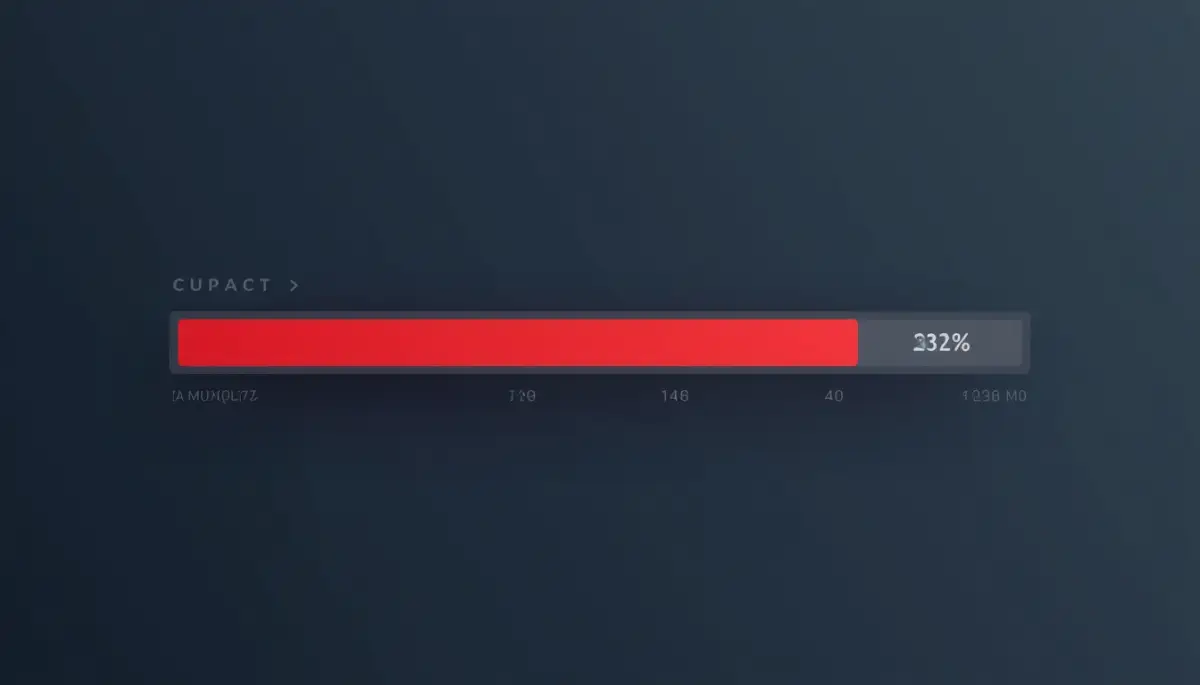
Look carefully at the right-hand sidebar for a section labeled "Statistics" or "Server Information." Scroll down until you find a metric clearly labeled "Inodes Usage" or "File Usage."
This progress bar will show you exactly how many files you are currently holding versus your absolute maximum limit. If this bar is glowing red and sitting at 99 percent, you have found the exact reason your website is malfunctioning.
Step 2: Emptying the Digital Trash Cans
When you delete an old blog post, a spam comment, or an unwanted plugin, it does not immediately leave your server. Most content management systems move these items into a hidden trash folder as a safety precaution.
These deleted items still count heavily against your total server limit while they sit in the trash. You must regularly navigate to your dashboard and manually empty these trash bins.
Go to your comments section and permanently delete all the marked spam. Check your media library and permanently erase any images attached to deleted articles.
This extremely simple housekeeping habit can easily free up thousands of files in less than five minutes.
Step 3: Purging Your Cache Safely
If your caching plugin is hoarding old data, you need to manually force it to clean the slate. Log into your website dashboard and locate the settings menu for your specific speed optimization plugin.
Look for a highly visible button that says "Purge All Cache" or "Clear All Cache." Clicking this button forces the plugin to delete all those thousands of tiny, outdated temporary files at once.
Do not worry about breaking your site; the plugin will naturally regenerate fresh, clean files the next time a visitor arrives. You should make it a strict habit to clear your cache at least once a month to prevent file buildup.
Step 4: Removing Outdated Local Backups
Having a solid backup system is the smartest thing any website owner can do. However, the location where you save those backup files changes absolutely everything.
Many free backup plugins intentionally save the massive backup folders directly onto your local server. If your website consists of fifty thousand files, a single local backup instantly adds another fifty thousand files to your limit.
If you keep four old backups on your server, you are artificially quadrupling your inode usage for no reason. You should use a modern backup solution that sends your secure files to external locations like Google Drive or Dropbox.
Delete all the old, outdated backup files sitting inside your main hosting file manager immediately. By simply moving your safety net off-site, your server can finally breathe easily again.
Advanced Tactics to Keep Your Server Healthy Forever
Cleaning out your digital trash is a great first step, but you do not want to repeat this stressful process every single month. Professional web developers use smart, automated systems to keep their server limits perfectly balanced.
You need to establish a few hidden routines that quietly manage your file count behind the scenes. Let's look at the expert-level strategies that guarantee your website stays online and lightning-fast.
These advanced habits are surprisingly easy to set up, and they completely remove the anxiety of sudden server crashes.
Offloading Heavy Media Files
If your website relies heavily on large images, audio clips, or downloadable PDFs, you are punishing your main hosting server unnecessarily. Every single time a visitor clicks on one of those items, your server processor has to work extremely hard to deliver it.
Instead of storing heavy media on your main host, you should offload them to a specialized Content Delivery Network (CDN) or a cloud storage bucket. Services like Amazon S3 or a premium CDN store your massive files on their own global servers.
When you do this, those files completely disappear from your cPanel, instantly dropping your inode count by thousands. If you are worried about the safety of moving data around, you should read about the dangerous reality of free cloud storage why your files are not safe so you can choose a secure, premium cloud provider instead.
Stopping the Invisible Image Multipliers
We previously talked about how WordPress automatically generates ten different sizes for every single photo you upload. You actually have the power to completely stop this invisible multiplication process.
You can log into your website's hidden functions file or use a lightweight optimization plugin to disable specific thumbnail sizes you never use. If your theme only requires three image sizes, there is absolutely no reason to let the system generate seven extra, useless copies.
By changing this one simple setting, you cut your future image file creation by more than half. According to performance guidelines published by the Google Developers documentation on image optimization, serving properly sized images not only saves server space but drastically improves your mobile loading speeds.
Mastering Your Error Logs
Every time a tiny piece of code misfires on your website, your server quietly writes a note about it in a hidden file called an "error log." Over several months, if a broken plugin keeps throwing the same warning every minute, that single text file can grow to a massive size.
Worse, some hosting environments create a brand new file for every single error, which absolutely destroys your inode limits. You must learn how to access your root directory and manually delete old, massive error logs.
If you notice a huge spike in database errors, it is incredibly helpful to know what your server is trying to tell you during a 502 error so you can fix the broken plugin rather than just deleting the log. Fixing the root cause stops the server from frantically writing thousands of new error files.

The Dangerous Mistakes That Keep Your Site Crashing
Even when website owners know about file limits, they often make terrible, emotional decisions while trying to clean things up. When your income is on the line, the panic makes you delete things without thinking clearly.
Let's break down the most severe, real-world mistakes people make when trying to fix a server limit crash. Avoiding these specific pitfalls will ensure you do not accidentally break your entire website permanently.
The Blind Deletion Disaster
When people see the red 99% usage warning on their dashboard, their first instinct is to highlight random folders and hit the delete button. They assume that if they do not recognize a folder name, it must be useless garbage.
This is the fastest way to completely destroy your website's core operating system. Many of those weirdly named folders contain the essential database connections that make your website function.
Never delete core WordPress folders like "wp-admin" or "wp-includes" just to save space. Always stick to deleting known, safe items like cached files, old backups, and the contents of your spam folders.
Falling for the "Infinite Hosting" Upsell
When your website crashes due to an inode limit, your hosting provider will usually send you an automated email. This email will politely suggest that your current plan is "too small" and offer you a massive, expensive upgrade.
Many panicked business owners immediately pay the higher monthly fee just to get their site back online quickly. In reality, upgrading your plan rarely solves the underlying clutter problem.
You are just buying a slightly larger messy closet to store your digital garbage. The experts at the Mozilla Web Performance guide strongly recommend cleaning your current database before ever spending money on upgraded server hardware. You can usually fix the issue completely for free just by emptying your digital trash cans.
Keeping Deactivated Plugins Installed
We all love testing out new plugins to see if they improve our website's design or functionality. If we do not like the plugin, we usually just click "Deactivate" and leave it sitting in the dashboard forever.
A deactivated plugin still holds hundreds of individual PHP and CSS files on your actual server. It is no longer running on your website, but it is still heavily counting against your absolute file limit.
If you have fifteen deactivated plugins sitting in your list, you are wasting thousands of valuable inodes for absolutely nothing. If you are not actively using a tool, you must click the red "Delete" button to completely remove its files from your hosting environment.
Relying on Outdated System Software
Your website's core software is constantly being improved by developers to run cleaner and use fewer server resources. If you ignore the little update notifications on your dashboard, you are forcing your server to run clunky, inefficient code.
Older software versions are notorious for leaking temporary files and failing to clean up their own cache folders. You really need to understand the 5 hidden dangers of clicking remind me later on system updates to grasp how much damage outdated code causes behind the scenes.
Keeping your core system, your theme, and your active plugins fully updated ensures your server runs as lean and efficient as mathematically possible.
Common Questions About Server Inode Limits
How many inodes does a normal WordPress website actually need?
A standard, healthy blog with a few hundred articles and standard plugins usually runs perfectly fine on roughly 50,000 to 80,000 inodes. If your count is over 200,000, you almost certainly have a massive caching or spam email problem.
Does upgrading to a dedicated server completely remove the inode limit?
Yes, when you rent a dedicated server or a high-end VPS, you are the only person using the hardware. You can usually configure the server to handle millions of files, but managing that complex hardware requires significant technical skills.
Will deleting old, unread emails help reduce my file count?
Absolutely. On most shared hosting platforms, every single email sitting in your inbox, sent folder, or spam folder counts as exactly one inode. Clearing out your old webmail is one of the fastest ways to lower your usage.
Does compressing my images reduce the number of inodes?
No, it does not. Compressing an image makes the physical file size (megabytes) much smaller, but it still counts as exactly one file (inode) on the server. To reduce inodes, you must delete the extra thumbnail sizes entirely.
Your Final Checklist for a Crash-Free Website
You now have a deep, practical understanding of the invisible mathematics that quietly run your web hosting server. The frustrating myth of "unlimited hosting" no longer holds any power over you or your business.
You do not have to live in constant fear of waking up to a terrifying white screen and a flood of angry customer emails. Your website is an incredibly valuable asset, and you now know exactly how to keep the engine running smoothly.
By clearing out your heavy caching plugins, stopping automatic image multiplication, and deleting old local backups, you give your server the necessary room to breathe.
I actually remember the massive wave of relief I felt when I finally deleted a massive folder of old backup files and watched my server usage drop from 99% down to a healthy 30%. It felt like my entire business could finally take a deep breath again. Take control of your hosting dashboard today, empty those digital trash cans, and enjoy the peace of mind of a perfectly optimized website!
Disclaimer: The information provided in this article is for educational and informational web infrastructure purposes only. It should not be considered professional IT or server administration advice. Hosting environments vary greatly, and you should always create a secure, off-site backup of your website before deleting any files from your main server dashboard.

