

The Panic of the Blank Website Screen
A Record, CNAME, TTL, these three letters have scared off more first-time website owners than any actual technical problem ever has. Here's the good news: the whole system runs on one simple idea, a giant phonebook that turns names into numbers. Once that clicks, connecting your domain stops feeling like defusing a bomb.
The Only Rule You Really Need to Remember
- DNS is just a giant phonebook that turns your domain name into a server's numeric address.
- An A Record points directly to a number (IP address), always use it for your root domain.
- A CNAME points to another name, not a number, perfect for "www" and subdomains like shop or blog.
- Never put a CNAME on your root domain, it will break your email delivery completely.

Decoding the Invisible Internet Postal Service
To properly connect your new website, you need to understand how the internet actually moves information around. Think of the internet as a massive, global postal service.
When you mail a physical letter to a friend, you do not write their GPS coordinates on the envelope. You write their name and their street address because that is how humans understand locations.
However, the postal delivery truck uses a highly specific routing system to actually find that physical house. The internet operates using the exact same logic.
Computers do not understand words like "Google" or "Facebook." They only understand long strings of numbers, which are called IP addresses.
Every single website on the planet lives on a server, and every server has a unique IP address. The Domain Name System is simply the master phonebook that translates your human words into computer numbers.

How a Browser Finds Your Website
Let us walk through the exact journey that happens when someone tries to visit your new blog. A visitor sits down at their laptop and types your custom domain name into their browser.
In a fraction of a second, their browser reaches out to the giant internet phonebook. The browser says, "I am looking for this specific domain name; what is the actual phone number for it?"
The phonebook quickly scans its massive list of records to find your specific entry. Once it finds your entry, it reads the instructions you left behind.
These instructions are your DNS records. They tell the phonebook exactly where to send the visitor next. If your instructions are written perfectly, the visitor arrives at your beautiful website instantly. If your instructions are slightly wrong, the visitor gets sent to an empty, broken digital parking lot.
The Foundation: Mastering the A Record
The most important instruction you will ever write in this digital phonebook is the A Record. The "A" simply stands for "Address."
An A Record has one very specific, highly important job to do. It connects your typed domain name directly to the physical IP address of your web server.
Imagine you buy a brand new house, and the city gives you a very long, complicated plot number. You want your friends to visit, but you do not want them to memorize that long plot number.
So, you put a nice, simple nameplate on your front gate. Your A Record is the official document that tells the city exactly which nameplate belongs to which plot number.
When your hosting company gives you an IP address (like 192.168.1.1), they are giving you your server's plot number. You simply open your domain settings, create an A Record, and paste that number in. The phonebook now knows exactly where your front door is located.
I once tried to use a CNAME for my main root domain instead of a proper A Record because I was rushing through a tutorial. That one tiny mistake completely broke my professional email delivery for three entire days before I realized what I did wrong! I learned the hard way that your main domain address must always use an A Record to function properly.
Quick way to remember which one you need: if you're pointing to a number (an IP address), use an A Record. If you're pointing to another name, use a CNAME. Your root domain almost always needs the A Record, no exceptions.
Understanding the Role of the CNAME
Now that you know how to find the main house, we can talk about the CNAME. This stands for "Canonical Name," but you should really just think of it as an "Alias Name."
A CNAME does not point to a physical IP address like an A Record does. Instead, a CNAME always points to another domain name.
Let us return to our housing analogy to make this perfectly clear. Imagine your friend sends a letter to your old apartment, but you have already moved to your new house.
You set up a mail forwarding rule at the post office. The rule says, "If any mail comes to my old apartment, please forward it to my new house."
A CNAME is exactly like that mail forwarding rule. It tells the digital phonebook that this specific nickname should just follow the rules of a different name.
Before we look at exactly when to use each of these settings, watch this highly visual breakdown that explains how the internet routing system actually works in real time.
When to Use a CNAME in Real Life
You might be wondering why you would ever need a forwarding rule if you already have a direct address. The most common use for a CNAME involves the letters "www" before your domain name.
Some visitors will type your website with "www," and some will just type your raw domain name. You want both of those people to end up in the exact same place.
You already created an A Record for your main, raw domain name. Now, you create a CNAME for the "www" version.
You set the "www" CNAME to simply point directly at your main raw domain. Now, if your web hosting company ever changes your server's IP address, you only have to update your one A Record.
The CNAME will automatically follow whatever the main domain does. This saves you from having to update dozens of different records every time your server infrastructure changes.
The "Alias" Rule for Subdomains
Another very common scenario is creating a separate section of your website, like an online store. You might want this store to live at "shop.yourdomain.com."
This new section is called a subdomain. Sometimes, your online store is hosted by a completely different company than your main blog.
The store company will not give you an IP address; they will give you a long, messy domain link. You simply create a CNAME for "shop" and point it to that messy link.
The visitor types in your clean, professional subdomain, and the CNAME silently forwards them to the store provider. Your visitor never knows they left your main server, keeping your brand looking highly professional.
Interactive Markdown Table: Clearing the Confusion
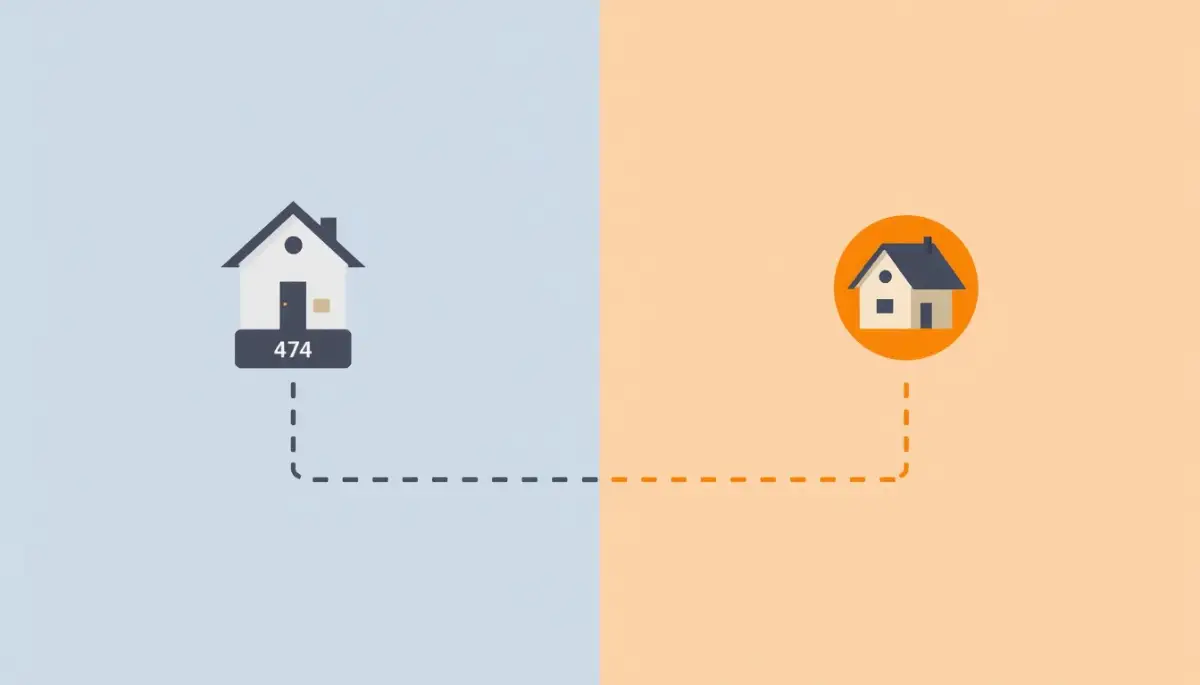
It is very easy to mix up these two settings when you are staring at a blank dashboard. Let us compare them side-by-side so you never make a routing mistake again.
The Waiting Game: Understanding DNS Propagation
After you confidently type in your new settings and hit save, you might immediately refresh your website. You will probably be very disappointed to see that your site is still showing an error page.
Do not panic, because you did not do anything wrong. You just have to wait for a process called DNS propagation.
Remember that the internet phonebook is not just one single book sitting in an office. There are thousands of copies of this phonebook spread across different servers all over the world.
When you change your address in your local phonebook, it takes time for that update to travel across the ocean. The servers in New York might update in five minutes, while the servers in Tokyo might take five hours.
It is completely normal for your website to look broken on your phone but perfectly fine on your laptop. Usually, this updating process is completely finished within a few short hours.
You just need to step away from your computer, grab a cup of coffee, and let the global internet do its heavy lifting. By tomorrow morning, your new digital home will be permanently connected and ready for visitors.
Expert Strategies for Flawless Domain Management
Getting your domain connected is a huge victory, but true professionals do not just set it and forget it. If you want your website to stay incredibly fast and reliable, you need to manage your digital phonebook like a true expert.
You do not need to be a senior network administrator to keep your routing perfectly optimized. Let's look at a few hidden strategies that top-tier web developers use to guarantee their domains never go offline unexpectedly.
These advanced habits are surprisingly easy to set up, and they will completely remove the anxiety of sudden connection failures.
The Power of Lowering Your TTL
When you open your domain dashboard to create a new A Record, you will usually see a mysterious box labeled "TTL." This stands for Time To Live, and it basically tells the global internet how long to memorize your current routing instructions.
If your TTL is set to 86400 seconds (which is 24 hours), it means the global phonebook will not check for any new updates until tomorrow. If you accidentally type the wrong IP address and hit save, your website will be completely broken for an entire day.
Before you ever change a major domain setting, you should manually lower your TTL down to 300 seconds (5 minutes). This brilliant little trick ensures that if you do make a routing mistake, you only have to wait five minutes to fix it instead of suffering through a massive twenty-four-hour blackout.
Here's the real difference in practice. Say you make a typo in your IP address at the default 24-hour TTL, your site stays broken for up to a full day. Drop that TTL to 300 seconds first, and the same mistake gets fixed globally in about five minutes once you correct it.
Auditing Your Hidden Ghost Records
Over several years, your business will naturally grow and evolve. You might test out a new email marketing platform, connect a temporary landing page builder, or experiment with a different online store provider.
Every single time you connect a new third-party service, you add a brand new CNAME or TXT record to your domain dashboard. The huge problem is that people almost never delete these old records when they stop using the service.
These forgotten "ghost records" clutter up your digital phonebook and can cause incredibly weird routing conflicts behind the scenes. If you ever wonder why your website keeps crashing even with unlimited hosting space, a messy, conflicting DNS zone file is often the silent culprit.
Make it a strict habit to review your domain settings twice a year and permanently delete any alias records pointing to software you no longer actively use.
Leveraging the Cloudflare Safety Net
If you want absolute peace of mind, you should eventually move your domain management over to a free Cloudflare account. Cloudflare acts like a massive, highly intelligent security guard standing directly in front of your digital phonebook.
When you manage your A Records inside Cloudflare, their global servers handle the traffic routing instead of your basic domain registrar. Because their network is so massive, any changes you make to your IP address happen almost instantly worldwide.
This completely eliminates the frustrating waiting period usually associated with domain propagation. According to performance data published by the internet routing experts at ICANN, using a distributed Anycast DNS network like Cloudflare drastically reduces the time it takes for browsers to find your specific server.

The Dangerous Routing Traps That Break Websites
Even when website owners finally understand the difference between an alias and a direct address, they often make terrible, emotional decisions while configuring their dashboards. When you are rushing to launch a new product, the panic makes you click save without double-checking your work.
Let's break down the most severe, real-world mistakes people make when trying to point their custom domains. Avoiding these specific pitfalls will ensure you do not accidentally break your entire website permanently.
The Double A Record Disaster
When you buy a brand new domain, the registrar company usually puts a "parking page" A Record in your dashboard by default. This default record simply points your domain to an ugly advertisement page saying "This domain is registered!"
When people try to connect their actual web hosting, they often just add a second A Record instead of deleting the first one. The digital phonebook now has two completely different IP addresses for the exact same front door.
When a visitor types your name into their browser, the internet gets totally confused and randomly picks one of the two numbers. Half of your visitors will see your beautiful new website, and the other half will see the ugly, cheap advertisement page. Always ensure you only have one single A Record for your main, root domain name.
The CNAME Root Domain Trap
We discussed this earlier, but it is so dangerous that it deserves its own specific warning. You might read a tutorial that tells you to create a CNAME for your main, raw domain name (like yourwebsite.com without the www).
Creating a CNAME on the root level of your domain is a massive structural violation of how the internet works. If you do this, the CNAME immediately overrides every single other instruction in your phonebook.
Your website might actually load perfectly fine, but your professional business email will suddenly stop receiving messages entirely. The official DNS protocol documentation from the Internet Society strictly forbids putting an alias record on the root apex of any registered domain name. If your web host tells you to use a CNAME for your root domain, they are giving you terrible, amateur advice.
Ignoring the Tiny Invisible Dot
This mistake sounds almost too silly to be real, but it causes massive headaches for thousands of beginners every week. When you type an alias target into your CNAME box, many older domain dashboards require a very specific punctuation mark.
If you want to forward traffic to "store.provider.com", you actually have to type "store.provider.com." with a tiny dot at the very end. If you forget to add that final, invisible dot, the system assumes you are making a local shortcut and completely breaks the forwarding link.
If your brand new subdomain throws an error, you need to understand what your server is trying to tell you during a 502 error to see if a simple missing dot caused a massive routing loop. Always double-check the specific formatting rules provided by your specific domain registrar.
The Misspelled IP Address Panic
An IP address is just a string of four numbers separated by three dots (like 192.168.1.100). When people copy this number from their hosting welcome email, they often accidentally copy an invisible blank space at the end.
When you paste an IP address with an invisible blank space into your A Record, the dashboard will often accept it but break the connection silently. The browser tries to dial the phone number but fails because the extra blank space ruins the mathematical formatting.
If you are a creative person who prefers writing content over managing servers, it is incredibly helpful to know ai tools that cut your work time in half no tech skills needed so you can automate your content while focusing on these tiny technical details. Always manually type your IP address or use a plain text editor to strip away any weird, invisible formatting before hitting save.
Common Questions About Domain Settings
Can I have both an A Record and a CNAME for the exact same name?
No, you absolutely cannot. If you create an A Record for "shop.yourdomain.com," you cannot also create a CNAME for that exact same "shop" prefix. The internet phonebook will throw a severe conflict error because it cannot process a direct address and a forwarding alias at the same time.
How long does it actually take for a new A Record to start working?
If you are updating an existing record, it completely depends on your TTL setting (usually between 1 to 24 hours). If you are creating a brand new record for a brand new domain, it usually connects and starts working within ten to fifteen minutes globally.
Does changing my domain settings delete my actual website files?
No, never. Your domain settings are completely separate from your physical web hosting files. Changing a CNAME is just like painting a new number on your front door; it does absolutely nothing to the furniture sitting safely inside your house.
Why does my email stop working when I change my hosting provider?
When you point your A Record to a new web hosting server, you often accidentally leave your old email records (MX Records) behind. You must ensure you copy your email routing instructions into your new domain dashboard before you completely switch over.
Your Final Checklist for a Perfect Launch
You now have a deep, highly practical understanding of the invisible digital phonebook that quietly runs the entire internet. The terrifying, confusing dashboard filled with weird acronyms no longer holds any scary power over your creative business.
You do not have to live in constant, heavy fear of clicking the wrong button and watching your beautiful new website vanish into thin air. Your domain name is an incredibly valuable digital asset, and you now know exactly how to point it in the right direction.
By confidently using an A Record for your main address and leaning on CNAMEs for your custom subdomains, you give your visitors a perfectly smooth, professional experience.
I actually remember the massive wave of emotional relief I felt when I successfully connected my very first online store using a clean CNAME rule. Watching my website load perfectly on my phone without any errors felt like pure magic. Take total control of your domain dashboard today, write those routing rules cleanly, and enjoy the incredible thrill of a perfectly executed website launch!
Disclaimer: The information provided in this article is for educational and informational web infrastructure purposes only. It should not be considered professional IT or direct server administration advice. Domain registrar dashboards and routing protocols vary greatly, and you should always take a screenshot of your original DNS settings before changing or deleting any active records.

