The Crushing Silence of a Dead Hard Drive
Quick question. When was the last time you actually checked if your external hard drive still works? Most people can't answer that, and that gap is exactly where five years of photos, tax records, or client work quietly disappears. You don't need a horror story to understand this risk, you just need to know how these little metal boxes actually fail.
Millions of people carry this exact anxiety every single day, keeping their most precious memories and important tax documents on small plastic rectangles. They buy larger and more expensive external drives, believing that having physical control over the hardware makes their files perfectly safe.
They do not realize that mechanical hard drives have a one hundred percent failure rate; it is never a question of if they will break, but exactly when.
Let us look closely at the hidden physical flaws of external drives so you can secure your digital life using modern, reliable cloud architecture.
Quick Takeaways Before You Read On
- Mechanical hard drives have a 100% eventual failure rate, it's a matter of when, not if.
- Cloud backup duplicates your files across multiple servers, so one device failure never means total data loss.
- A basic sync folder like Dropbox is not the same as a true backup, since deletions sync both ways.
- Following the 3-2-1 backup rule, three copies, two storage types, one offsite, is the simplest way to stay protected.
The Architecture of Safety: Moving Beyond Fragile Metal Disks
To protect your files permanently, you must understand the fundamental physical differences between a box on your desk and a massive global server network.
Physical hard drives were a brilliant invention twenty years ago, but they simply cannot match the reliability of modern data centers.
Let us explore the core reasons why relying solely on local hardware is a dangerous habit and how cloud systems fix these flaws instantly.
The Problem with Moving Parts: Understanding Mechanical Failure
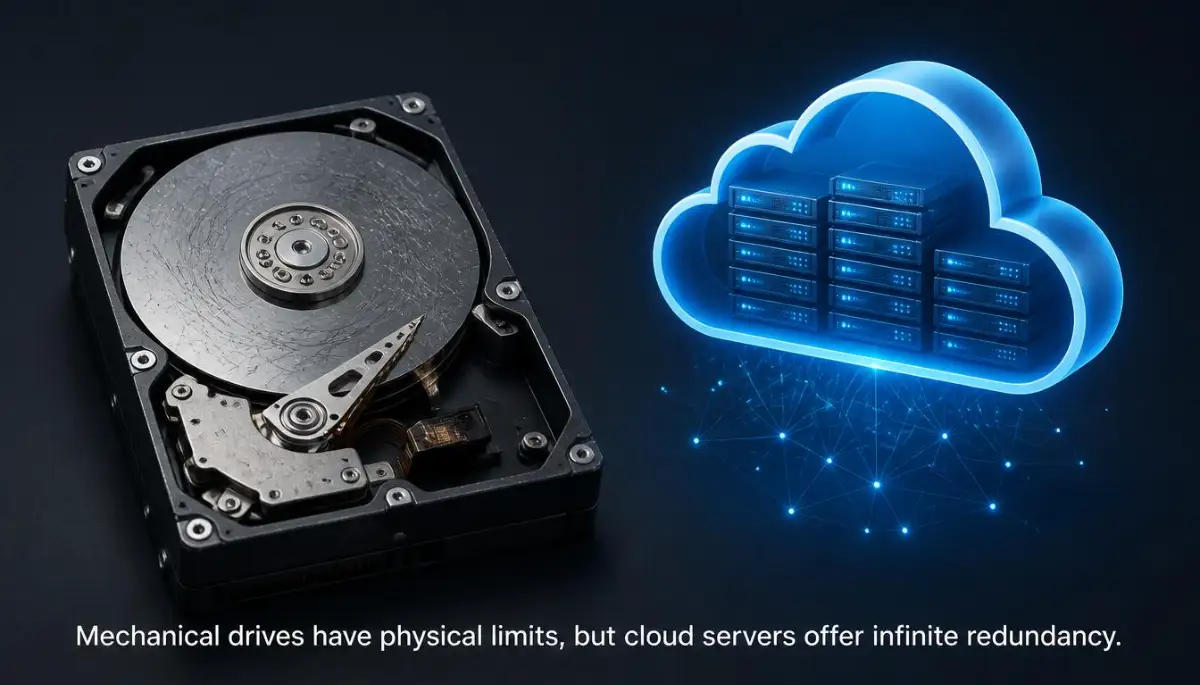
If you open up a standard external hard drive, you will see a series of shiny magnetic platters and a tiny mechanical arm.
This arm sweeps rapidly across the spinning platters to read and write your data, operating with microscopic precision.
Because these parts are physically moving at high speeds, they are incredibly sensitive to sudden movements, temperature changes, and simple wear and tear.
A slight bump while the drive is spinning can cause the mechanical arm to crash directly into the data platter, destroying the magnetic surface.
Even if you treat the drive perfectly, the tiny motor spinning the disks will eventually burn out after three to five years of regular use.
Cloud backup systems completely bypass this physical risk by moving your data off a single, fragile device.
When you use a cloud service, your files are stored on massive, enterprise-grade solid-state servers located in climate-controlled data centers.
These data centers are built specifically to handle constant use, completely eliminating the risk of sudden mechanical failure wiping out your work.
The Magic of Infinite Redundancy
The most powerful advantage of cloud backup is a concept known in the tech industry as data redundancy.
If you save a family photo onto a physical external hard drive, exactly one copy of that photo exists in the entire world.
If your house floods, or if a burglar breaks in and steals your laptop bag, that single copy is gone forever.
When you upload that same photo to a premium cloud backup service, the system does not just save it on one server.
The cloud provider instantly duplicates your file and scatters exact copies across multiple different servers, often in entirely different geographic regions.
If a severe storm causes a power outage at one data center in New York, the server in Texas immediately takes over, keeping your files safe and accessible.

Pro-Level Tip: The 3-2-1 Backup Strategy Rule
When I first started moving my files to the cloud, I made the mistake of deleting the original files from my laptop to save space, completely misunderstanding how syncing works. I quickly realized that if I accidentally deleted a file on my laptop, the cloud system would delete it online too, leaving me with nothing. My advice is to always follow the 3-2-1 rule: keep three total copies of your data, on two different types of storage, with one copy safely stored offsite in the cloud.
The Freedom of Automated Background Syncing
The biggest flaw with physical hard drives is that they require human memory and manual effort to work correctly.
You have to remember to find the cable, plug the drive into your laptop, and manually drag your new folders over at the end of a busy week.
Because we are all incredibly busy, most people only remember to back up their computers once every few months.
If your laptop crashes today, any work you did since your last manual backup three months ago is permanently lost.
Cloud backup tools solve this human error problem by operating silently in the background of your operating system.
Once you install the software, it quietly monitors your important folders for any new changes or saved documents.
The moment you click save on a new spreadsheet, the cloud software encrypts the file and uploads it automatically through your Wi-Fi connection.
Want to see a step-by-step screen walk-through of how to configure automated cloud syncing so you never have to drag a file again? Watch this quick, expert video guide before reading about ransomware protection below!
Defending Against Ransomware and File Corruption
Modern digital threats are far more advanced than the simple email viruses of the past.
Ransomware is a vicious type of malware that silently encrypts every file on your computer, locking you out until you pay a massive fee to a hacker.
If your external hard drive is physically plugged into your laptop when a ransomware attack hits, the virus will encrypt your backup drive too.
This leaves you completely trapped, with both your original files and your physical backups held hostage simultaneously.
Premium cloud backup services include advanced version history tracking to protect you against these specific attacks.
Version history means the cloud server keeps multiple past snapshots of your files, saving a new copy every time you make a change.
If a hacker encrypts your local files today, you simply log into your cloud dashboard and restore the clean version of the file from yesterday.
A friend of mine runs a small photography business, and a ransomware attack hit her laptop last year. She logged into her cloud dashboard, rolled every folder back to the version from the previous morning, and was back to editing client photos within an hour, no ransom paid, no data lost.
The cloud server acts as an untouchable time machine, rendering modern ransomware attacks completely powerless against your private data.
Myth vs. Reality: Digital Backup Methods
Secure Access From Any Device, Anywhere
Physical hard drives tie your productivity to a single geographical location.
If you leave your backup drive on your home desk, you cannot access that important client presentation while traveling in another city.
Cloud backup systems break these physical chains, turning your data into a liquid resource that follows you everywhere.
If you are at a coffee shop and your laptop suddenly refuses to turn on, you do not have to panic or cancel your client meetings.
You can simply borrow a friend's computer, log into your secure cloud portal via a web browser, and download the exact presentation file you need.
You can even access your entire file directory directly from your smartphone while sitting in the back of a taxi.
This global accessibility ensures that hardware failures never disrupt your daily workflow or damage your professional reputation.
Getting Started: Your First Cloud Backup Configuration
Transitioning away from physical hard drives might feel intimidating at first, but modern software makes the process incredibly smooth.
Before you sign up for a cloud service, take ten minutes to organize the current files on your computer.
Delete old duplicate photos and clear out your massive downloads folder to ensure you are not paying to back up useless junk files.
If your laptop is currently running slow, you might want to review how to speed up a slow laptop without buying new to clear system clutter before your initial cloud upload.
Once your computer is clean, choose a cloud provider that offers automatic background syncing and strong data encryption.
When you run the initial backup, leave your computer plugged into the wall charger overnight, as uploading your entire hard drive for the first time can take several hours.
If you experience unexpected server errors during this setup, you can learn how to fix 502 bad gateway server errors to ensure your connection remains stable.
After that first massive upload is complete, the software will only need to upload tiny, incremental changes, using almost zero daily internet bandwidth.
Protecting your digital assets allows you to focus on your creative work without the constant anxiety of a sudden hardware crash.
Advanced Defenses: Building an Unbreakable Digital Storage Strategy
Once you understand the physical limits of mechanical hard drives, moving your data to the cloud is the natural next step.
However, simply dragging a few folders into a free cloud account does not guarantee true digital safety.
To protect your files permanently, you should adopt a few pro-level storage habits that security experts use.
First, implement a strict file encryption protocol before uploading anything highly sensitive to the cloud.
While reputable cloud providers encrypt your data on their servers, they still hold the master decryption keys.
If you are storing tax documents or unpatented business plans, you must encrypt the files locally on your own computer first.
You can use open-source software to create a password-locked zip file or a secure local container.
According to data security frameworks published by the NIST guidelines on data protection, keeping your encryption keys local is the only way to guarantee absolute privacy.
This simple step ensures that even if a hacker breaches your cloud account, they cannot read your private documents.
The Power of Continuous Incremental Backups
Another expert-level secret is moving away from scheduled weekly backups and shifting to continuous incremental syncing.
Old software required you to wait until the end of the week to upload a massive, heavy chunk of data all at once.
Modern cloud tools monitor your folders in real-time, uploading only the tiny, specific lines of code or text you just changed.
This incremental approach uses almost zero internet bandwidth, meaning you will not experience any internet lag during your workday.
If your internet speed has been frustratingly slow, you might want to look at fixing slow web browsing issues to ensure your automated backups run smoothly.
Continuous syncing guarantees that if your laptop crashes at 3 PM, you will not lose the work you did at 2:30 PM.
It acts as an invisible safety net that catches your files the exact second you hit save.
Diversifying Your Cloud Architecture
When setting up your digital defense, you must never put all your eggs into one single corporate basket.
If you use Google for your email, documents, and primary cloud storage, a sudden account suspension could lock you out of your entire digital life.
Always split your most critical data between two different, competing cloud providers.
Use one service for your daily active syncing and a completely separate, low-cost service for deep, long-term archiving.
By diversifying your storage providers, you protect yourself from corporate server outages and accidental account bans.
This layered defense strategy is similar to how you would protect your smart home setup from failing by not relying on a single weak Wi-Fi router.
Creating a resilient, multi-provider system guarantees your access to your life's work, no matter what happens to a single company.
Do's and Don'ts for Cloud Backup Management
- Do enable two-factor authentication (2FA) using an authenticator app on your primary cloud storage account.
- Do check your cloud provider's version history limits to ensure they keep deleted files for at least thirty days.
- Don't use your cloud storage folder as the only place a file exists; it should be a mirror of your local hard drive.
- Don't ignore storage full warnings, as syncing will stop completely when you hit your data limit.

Hidden Sandtraps: The Emotional Mistakes That Lead to Sudden Data Loss
When managing our digital lives, human habits are often much more dangerous than mechanical hardware failures.
We tend to value convenience over security, pushing off boring backup tasks until a disaster forces us to pay attention.
Understanding these psychological traps is key to keeping your digital identity completely safe from sudden loss.
The most dangerous pitfall is confusing a basic cloud synchronization folder with a true, comprehensive backup system.
Services like Dropbox and iCloud are primarily designed to sync files across multiple devices for easy access.
If you accidentally delete a folder on your laptop, the sync software immediately deletes it from the cloud server too.
If you do not notice the mistake within thirty days, that folder is permanently erased from the server's trash bin.
True cloud backup software operates differently; it creates a one-way mirror of your hard drive that never automatically deletes files.
Relying on a simple sync folder for deep backup is a massive error, much like ignoring system security patches where a small oversight causes severe damage later.
The "Plug It In Later" Procrastination Loop
Another severe mistake is buying a high-quality physical hard drive and leaving it completely disconnected on your desk.
Many people feel a false sense of security simply because they own a backup drive, even if they haven't plugged it in for months.
When their laptop inevitably crashes, they realize their most recent backup is six months out of date.
Human memory is incredibly flawed when it comes to routine administrative chores.
If you must use a physical drive, leave it permanently connected to your desktop monitor or Wi-Fi router for automated network backups.
Waiting for the "perfect time" to back up your files guarantees that you will lose your most recent, important work.
Using Shared Cloud Folders for Private Financial Records
Many users casually drop their private tax returns or business contracts into shared cloud folders without checking the link permissions.
If you share a main folder with a coworker, they automatically gain access to every sub-folder you create inside it.
If that coworker leaves their laptop unlocked at a coffee shop, your private financial documents are instantly exposed to strangers.
According to data security reports from the Identity Theft Resource Center on digital exposure, unsecured shared cloud links are a leading cause of accidental identity theft.
Always keep your sensitive financial files in a completely isolated, private cloud directory that cannot generate public sharing links.
Protecting your data prevents massive headaches, similar to how speeding up a slow laptop without buying new prevents you from wasting money on unnecessary hardware replacements.
Your Digital Security Blueprint: Action Plan for Tomorrow
Achieving absolute digital peace of mind does not require you to be a computer engineer or security expert.
It simply requires you to stop trusting fragile spinning metal disks and embrace automated, redundant systems.
Taking control of your data storage gives you the freedom to work creatively without the constant fear of losing everything.
Your Immediate Storage Protection Checklist
Here is a simple, practical checklist you can put into action starting tomorrow morning:
- Audit your current storage: Check the exact date of the last successful backup on your physical hard drive.
- Install a cloud client: Download a dedicated, continuous cloud backup software tool to your main computer.
- Set up encryption: Use a free tool to encrypt your tax returns and private financial documents locally.
- Enable two-factor authentication: Turn on an authenticator app for your primary cloud storage login.
- Test file recovery: Delete a test file on your computer and practice restoring it from your cloud dashboard.
Losing my files to a broken physical drive was a painful lesson, but it forced me to build an unbreakable digital safety net.
If I can stop worrying about mechanical failures and secure my life's work automatically, you can absolutely do it too starting today.
Let us take action tomorrow morning, set up our cloud syncs, and protect our digital memories permanently.
Common Questions About Cloud vs Physical Backups
Are my files totally safe if I only use an external hard drive?
No, external hard drives have a 100% failure rate over time due to their fragile, spinning mechanical parts. They are also vulnerable to theft, fire, floods, and being infected if plugged in during a ransomware attack.
Does uploading my entire hard drive to the cloud slow down my internet?
The initial upload of your entire hard drive can take several hours and may slow your connection slightly. However, after the first upload, modern cloud software only uploads tiny, incremental changes in the background, using almost zero daily bandwidth.
What happens to my cloud files if the storage company goes out of business?
Reputable enterprise cloud companies provide ample warning (usually 60 to 90 days) if they plan to shut down their services. This gives you plenty of time to download your files or migrate them to a competing cloud provider.
Is it safe to keep my passwords in a plain text file on my cloud drive?
No, you should never store unencrypted passwords or sensitive bank details in a plain text file on any cloud drive. Always use a dedicated, encrypted password manager application to store and protect your login credentials.
Disclaimer:
This article is for general informational and educational purposes only and does not constitute formal cybersecurity, data compliance, or professional IT advice. Data storage requirements, encryption laws, and privacy regulations vary significantly by country and business industry. Always keep multiple backups of critical data and consult with a certified IT professional before making major changes to your personal or business data architecture.