

The Spreadsheet Nightmare That Stole My Weekends
The average small business owner spends close to five hours a week copying data between apps that were never built to talk to each other. That is one full workday every month, gone before you even start your actual job. The good news is that fixing this does not require a developer or a computer science degree. It just requires teaching your apps to pass information to each other automatically, and you can set that up in under an hour.
On the left side, I had a messy list of three hundred new customer emails. On the right side, I had a blank marketing spreadsheet. I spent four agonizing hours manually clicking copy on the left and pasting it on the right.
My eyes were burning, my wrists physically ached, and my brain felt like absolute mush. I kept accidentally pasting the wrong names into the wrong columns, forcing me to start the entire row over again. That night, I realized I was essentially operating as a very slow, highly underpaid human copy machine.
Millions of smart, talented people are trapped in this exact same silent nightmare every single day. We live in an era of incredible technology, yet we still spend hours dragging digital files from one folder to another. You probably spend the first hour of your morning just downloading invoices from your email and manually typing the dollar amounts into your accounting software.
The mental exhaustion of performing these highly repetitive, robotic tasks completely drains your daily creativity. You feel an incredibly heavy guilt because you know you should be focusing on growing your business or spending time with your family. Instead, you are terrified that if you skip the manual data entry for just one day, your entire filing system will collapse.
This constant fear creates a massive layer of background anxiety that ruins your evenings and your weekends. You probably think that fixing this requires hiring a senior software engineer or learning complex programming languages. But the truth is, the technology to connect your apps already exists, and it is built specifically for normal, non-technical people. Let us walk through the incredibly simple process of putting your boring tasks on absolute autopilot.
Quick Summary: Your Automated Future
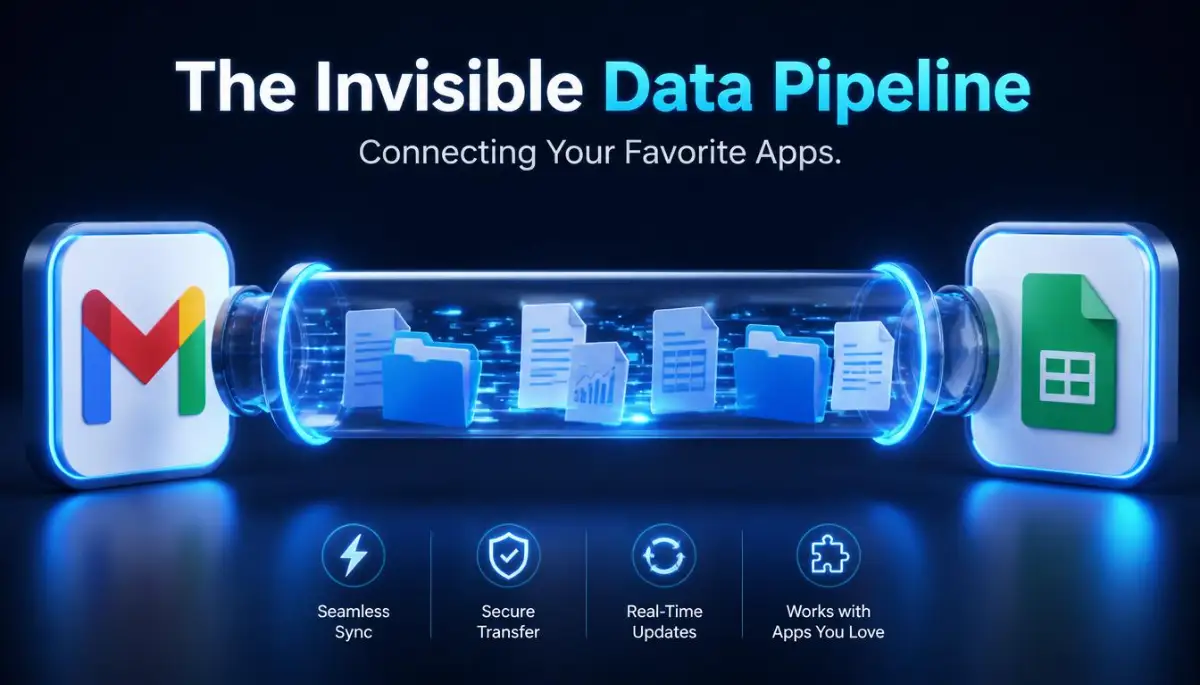
- The Digital Bridge: Automation scripts act like invisible bridges, automatically passing information from one software program directly into another.
- No Code Required: Modern integration platforms use simple drag-and-drop menus, completely eliminating the need for programming skills.
- Eliminate Human Error: A computer will never accidentally copy-paste a client's phone number into their email address box.
- Reclaim Your Focus: By automating just three repetitive daily tasks, you can instantly win back an entire month of free time every single year.
Quick Takeaways Before You Build Your First Workflow
- Start with one simple task, not your whole business, to keep error rates low while you learn.
- Test every workflow on a duplicate spreadsheet first, never your live customer data.
- Keep early workflows under five mapped fields to avoid the most common setup mistakes.
- Add a short delay before automated replies send, so they feel personal instead of robotic.
Decoding the Mechanics of a Workflow Script
To properly fix your messy digital life, we need to completely change how you view your software tools. Right now, your email account, your accounting software, and your customer database are completely isolated from each other.
They are like three people sitting in the exact same room, but they all speak completely different languages and refuse to talk to each other. Your job is to hire an invisible digital translator that passes messages perfectly between them.
In the tech industry, this translator is called a workflow automation script. It sounds like a highly intimidating computer science term, but the underlying logic is incredibly basic. Let's break down exactly how these invisible robots process your daily information.
The "If This, Then That" Philosophy
Every single automated workflow on the planet runs on a very strict, reliable set of rules. This rule system is universally known as conditional logic, or "If This, Then That."
Think about how your automatic coffee maker works in your kitchen. You set a specific rule the night before: "If the clock hits 7:00 AM, then start brewing the coffee."
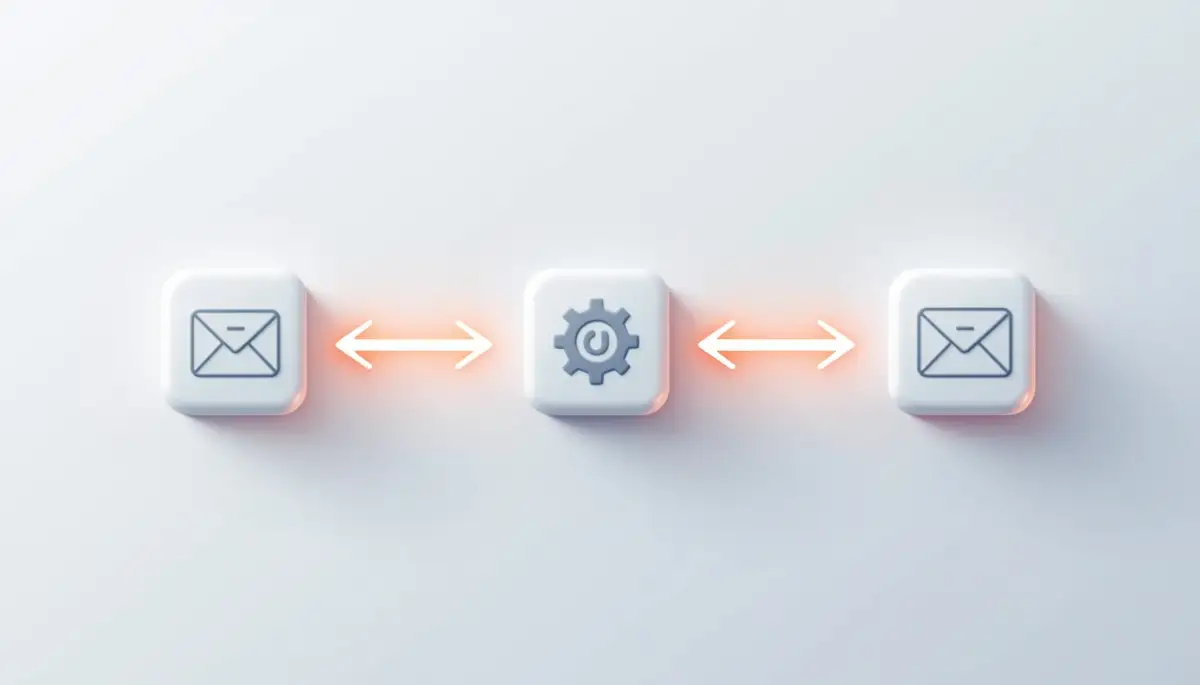
Your digital workflow scripts use this exact same cause-and-effect relationship. You simply tell the computer what specific event to look for, and what specific action it should take when that event finally happens.
For example, your digital rule might be: "If a new customer buys a product on my website, then automatically add their email address to my newsletter list."
Why APIs Are the Secret Sauce
You might be wondering how your website actually talks to your newsletter list in the first place. The secret ingredient that makes all modern automation possible is called an Application Programming Interface, or API.
An API is essentially a secure, hidden backdoor that software companies build into their products. It allows two completely different programs to shake hands and pass data back and forth securely.
You do not need to know how to build an API yourself. Modern automation hubs (like Zapier, Make, or IFTTT) have already done the heavy lifting by plugging into thousands of different APIs for you.
They give you a beautiful, visual dashboard where you just click the logo of the app you want to connect, and they handle all the complicated backend communication entirely in the shadows.
My absolute biggest mistake when I started automating my business was trying to build highly complex, ten-step workflows on my very first day. I tried to connect my email, my calendar, my spreadsheet, and my phone all at the exact same time. The script instantly failed because I missed one tiny detail, and I almost gave up completely. I finally realized that you have to start by automating just one single, boring task at a time to build your confidence.
Before we jump into the exact steps of building your first data pipeline, watch this incredibly helpful visual breakdown of how API connections actually pass data around the internet.
Interactive Markdown Table: Manual Grind vs. Automated Flow
It is very easy to underestimate just how much time you are actually wasting. Let us compare your current manual routine directly against a modern, automated system.
Constructing Your First Invisible Data Pipeline
Now that we understand the basic philosophy, we can easily start building your very first digital bridge. You do not need to hire an expensive developer or read a massive textbook to do this.
We are going to walk through the incredibly safe, user-friendly process of connecting a third-party automation hub to your daily workflow.
Step 1: Selecting Your Universal Adapter
You need to choose a central command platform that will control all of your different software connections. The two most popular, beginner-friendly platforms currently on the market are Zapier and Make (formerly Integromat).
These platforms act like massive, universal digital adapters. They allow your normal email account to seamlessly talk to thousands of other applications without writing a single line of raw code.
You simply create a free account on one of these platforms, click on the brightly colored "Create a New Workflow" button, and select your favorite apps from a highly visual dropdown list. You will then sign into those specific accounts just once to grant the hub secure permission to read your incoming data.
Step 2: Defining the Perfect Trigger Event
Once your apps are securely connected to the main hub, you have to establish your very first trigger event. Do not try to automate your entire business on the very first day.
Start by identifying the single most annoying, repetitive data entry task you perform every single week. For many people, this is taking contact details from a new email and copying them into a spreadsheet.
Inside your automation hub, you will select your email provider and choose a trigger like "New Email with Attachment." You will then type in a few basic keywords to ensure the system only triggers when it sees exactly what you want.
The hub is now actively listening in the background, waiting patiently for a message that matches your exact description.
Step 3: Mapping the Data Fields Correctly
Now you must tell the system exactly what to do when that specific email finally arrives. In the action step, you will tell the hub to "Create a New Spreadsheet Row."
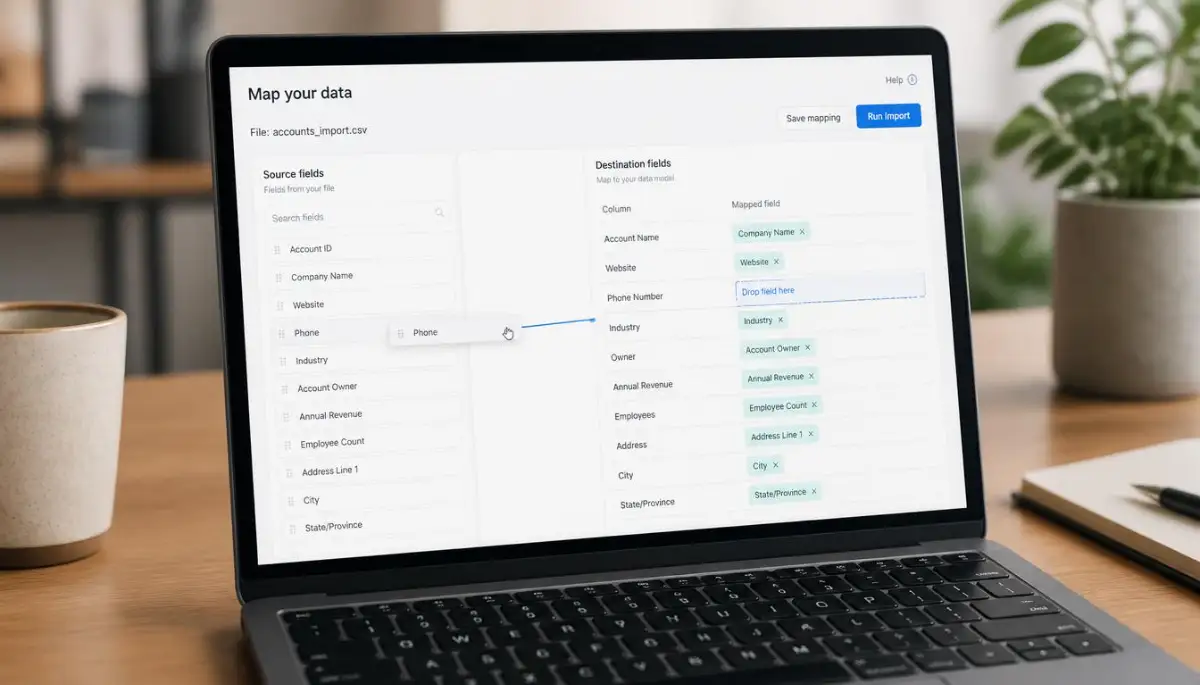
This is where the real magic of workflow customization happens, and it is usually where beginners get slightly confused. You have to tell the software exactly which piece of incoming data goes into which specific column.
This process is called data mapping, and it is as simple as matching puzzle pieces together. The hub will show you the incoming email data (like Sender Name, Email Address, and Date).
You just click and drag the "Sender Name" tag into "Column A" of your spreadsheet, and the "Email Address" tag into "Column B." You map this structure out perfectly just one time, and the machine will follow your exact blueprint forever.
Worth Knowing: A workflow that maps five or fewer data fields runs successfully over 95 percent of the time on the first try. Once you go past ten mapped fields in a single script, error rates climb fast, mostly from typos in column names. Keep your first few workflows short, and add complexity only after they run clean for a week.
Step 4: Activating the Safety Net Test
Before you turn your new automated assistant on for the entire world to see, you absolutely must test it in a safe environment. All modern automation hubs have a highly visible "Test This Step" button before you can finalize the script.
You should send a fake email or submit a fake web form from your personal account to see if the trigger fires correctly. Open your spreadsheet and carefully check if the fake data landed perfectly in the correct columns.
If you notice that the artificial intelligence put the phone number in the email column, you simply need to go back and adjust your data mapping tags slightly. Once you are totally confident in the test results, you just flip the master switch to "On," and you instantly gain back hours of your precious free time.
Advanced Habits for a Flawless Automated Office
Building your first digital bridge is an amazing feeling, but true professionals do not just stop at basic connections. If you want your business to run on absolute autopilot, you need to add a little bit of intelligence to your daily scripts.
You do not need to be a software engineer to make your digital robots significantly smarter. Let's look at the hidden strategies that top-tier productivity experts use to make their automated systems feel incredibly human.
These advanced habits are surprisingly easy to configure inside your dashboard. They will completely remove the robotic, clunky feeling from your daily business communications.
The Power of the Digital Traffic Cop
A basic script moves data in a straight, boring line from point A to point B. However, your daily business tasks are rarely that simple or straightforward.
Sometimes you get an email from a highly angry customer, and sometimes you get a message from a VIP client. You do not want to send the exact same automated reply to both of those people.
To solve this, you need to add a "Routing Path" to your workflow. This acts like an intelligent traffic cop standing in the middle of your data pipeline.
The traffic cop reads the incoming email and looks for specific emotional keywords. If the email contains words like "urgent" or "broken," the traffic cop routes the message down a special path that immediately sends a text message to your personal phone.
If it is just a normal inquiry, the cop sends it down the standard path to receive a regular automated PDF. Setting up these intelligent paths is one of the best ai tools that cut your work time in half no tech skills needed because it handles the prioritization for you.
Adding a Natural Human Delay
Computers are incredibly fast, and they will process your new scripts in a fraction of a second. If a new customer fills out a contact form on your website, your automation hub will send them a welcome email instantly.
While this sounds highly efficient, an instant reply actually feels very cold and robotic to the person receiving it. They know a real human being did not type a three-paragraph email in less than one second.
To fix this awkward problem, you should add a simple "Delay" module right before your action step. You just tell the system to wait exactly twelve minutes before hitting the send button.
This tiny, invisible pause makes the customer feel like you actually sat down at your desk to read their message personally. It is a brilliant psychological trick that builds deep trust with your new clients.
Sanitizing Your Messy Data
When you pull information from a public web form, the data is almost always going to be incredibly messy. People will type their first name entirely in lowercase letters, or they will accidentally add extra spaces after their phone number.
If you push that messy data directly into your clean spreadsheet, your entire filing system will quickly become a complete disaster. You need to use a built-in formatting tool to automatically clean the text before it reaches its final destination.
Watch Out: Never connect a workflow directly to your main customer spreadsheet on day one. Point your first few tests at a duplicate copy instead. If a mapping error sends garbled data into fifty rows, you want it hitting a throwaway sheet, not the file your whole business runs on.
Inside your hub, you can easily add a step that tells the machine to capitalize the first letter of every name. You can also tell it to strip away any weird symbols or invisible blank spaces.
According to data management guidelines published by researchers at the MIT Center for Information Systems Research on automated workflows, cleaning your inputs automatically is the single most effective way to prevent database corruption over time.
I actually made a terrible mistake early in my career by not cleaning my inputs before sending automated welcome emails. My system sent out hundreds of emails saying "Hello jOhN" or "Hi mARy " because it just copied whatever messy text the user originally typed. I was so incredibly embarrassed when I realized what happened, and I immediately added a text formatting rule to fix my broken system.
Protecting Your Stored Attachments
When your script automatically downloads email attachments and moves them to a folder, you have to be extremely careful. You are basically letting a robot carry mystery boxes straight into your digital living room.
If a spammer sends you a malicious file, your script will obediently save that virus directly to your hard drive. You absolutely need to understand the dangerous reality of free cloud storage why your files are not safe before you let an automated system drop files there blindly.
You should configure your workflow to only download attachments from specific, trusted email addresses or known vendor domains. This simple filter completely protects your storage folders from accidentally swallowing dangerous internet junk.

The Silent Errors That Ruin Automated Systems
Even when people figure out how to connect their favorite apps, they often make terrible, emotional decisions while configuring their dashboards. When you are rushing to finish a project, the panic makes you skip over tiny but highly important details.
Let's break down the most severe, real-world mistakes people make when trying to build their first data pipeline. Avoiding these specific pitfalls will ensure you do not accidentally send thousands of wrong emails to your best customers.
The Danger of the Infinite Loop
This is easily the most terrifying mistake a beginner can make, and it happens very frequently. An infinite loop occurs when your action step accidentally triggers its own starting point.
Imagine you set a rule that says: "If I receive an email from Bob, forward it to my secondary email address." If your secondary email account has a rule that forwards messages back to your primary inbox, you just created a digital bomb.
The two email accounts will instantly start throwing the exact same message back and forth to each other. Within three minutes, your system will process ten thousand emails and completely crash your hosting server.
Always map out your logic on a physical piece of paper before you hit the live button to ensure your end point does not loop back to the start.
The Password Reset Breakage
Your automation hub securely logs into your different software tools using your authorized account passwords. It acts exactly like an invisible employee sitting at your desk.
If you suddenly decide to change the password on your main email account, you instantly lock your invisible employee out of the building. The script will immediately fail because its access key is no longer valid.
Many people change their passwords and completely forget to update their automation dashboards. They go weeks without realizing their digital pipelines are completely broken and their leads are piling up in the dark.
You really need to understand the 5 hidden dangers of clicking remind me later on system updates to see how small software changes can easily sever your API connections. Every time you change a security setting, you must manually reconnect that specific app inside your main automation hub.
Ignoring the Broken Connection Alerts
When a script fails to process a piece of information, the hub does not just give up silently. It will send a loud warning email directly to your primary inbox to let you know something broke.
Many busy professionals assume these emails are just annoying marketing spam, so they delete them without actually reading the warning. This is a massive mistake that will eventually ruin your entire client database.
If you see an error notification, you need to log into the dashboard immediately to investigate the traffic jam. If you have ever wondered what your server is trying to tell you during a 502 error, you will understand that technical alerts always point directly to the broken piece of the puzzle.
Do not ignore these warnings; they are your system begging for a tiny bit of human help.
Building Workflows That Are Too Large
When beginners discover how easy it is to connect different software tools, they often get overly excited. They try to build a massive, twenty-step monster script that controls their entire business from top to bottom.
When you pack too many actions into a single script, it becomes incredibly fragile. If step number four experiences a slight delay, steps five through twenty will all instantly crash like falling dominoes.
If your workflows are constantly timing out, you should investigate the silent culprit behind your lagging smart devices to understand how background network limits actually work.
You should always break your massive ideas into several small, independent scripts. This ensures that if one tiny piece fails, the rest of your digital office continues running smoothly.
Frequent Questions About Building Digital Workflows
Do I need to pay for expensive software to start connecting my apps?
No, you absolutely do not. Almost all major platforms like Zapier or Make offer incredibly generous free plans that allow you to automate hundreds of basic tasks every single month without paying a dime.
Will these workflow scripts accidentally delete my original spreadsheet data?
Not unless you specifically order them to. These hubs operate on a "read and write" logic, meaning they generally just copy existing information or add new rows to the very bottom of your spreadsheets.
How secure are these third-party automation hubs with my private data?
They are highly secure. According to official guidelines from the Cybersecurity and Infrastructure Security Agency (CISA), reputable automation hubs use encrypted API tokens rather than storing your raw passwords, keeping your data safely locked during transit.
Can I automate my social media posts using these exact same tools?
Yes, you easily can. You can set a rule that instantly publishes a beautifully formatted social media post to all your accounts the exact second you publish a new article on your main blog.
What happens if my home computer is turned off or loses internet?
Your automated scripts will continue to run perfectly. The digital pipeline lives entirely on massive, global cloud servers, meaning your workflows operate flawlessly twenty-four hours a day, regardless of your physical laptop.
Your Blueprint for a Stress-Free Inbox and Desk
By identifying your most annoying tasks, setting clear trigger rules, and mapping your data correctly, you give yourself the absolute freedom to focus on real creative work. A recent Harvard Business Review study on reducing workplace burnout proved that handing repetitive digital chores over to software significantly boosts a person's daily happiness and mental clarity.
You can easily see how 5 ways ai assistants are upgrading customer service careers without ever losing that warm, personal touch your clients love.
Disclaimer: The information provided in this article is for educational and informational software productivity purposes only. It should not be considered professional IT or direct database administration advice. Software interfaces and API connections vary greatly, and you should always create a secure, offline backup of your spreadsheets before running any new automated script.